Request a representative visit or G7 15 Day or G7 samples
To determine if your smartphone is compatible with Dexcom G7, please visit https://www.dexcom.com/en-us/compatibility
No. You cannot wear them at the same time.
Direct to Watch can’t share real-time glucose data to Health App partners like Sugarmate or Happy Bob. When your patient has their phone with them, Dexcom G7 can share real-time glucose data with Health App partners. If your patient leaves their phone behind, Dexcom G7 will stop sharing real-time glucose data with Health App partners. When your patient is back with their phone* their glucose data will be backfilled to the partner app.
To view a list of compatible Apple Watches, visit this FAQ: HERE
*Smart device sold separately. To view a list of compatible devices, visit dexcom.com/compatibility.
Patients will see their current glucose reading, trend arrow, trend graph, and alerts. Tap the trend graph to see sensor readings over the past 1, 3, or 6 hours.
To view a list of compatible Apple Watches, visit this FAQ: HERE
*Smart device sold separately. To view a list of compatible devices, visit dexcom.com/compatibility.
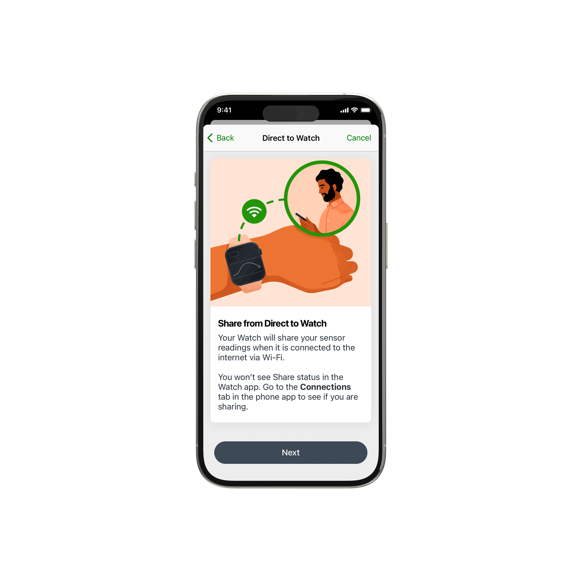
As part of the Dexcom G7 2.7 app release, users can now “Share” glucose data from their compatible Smartwatch* if their Apple Watch is connected to the internet over Wi-Fi†.
Once Direct to Watch is active and their watch is connected to the internet via Wi-Fi, numbers will be shared with their Followers‡ automatically. Your patient will not see a share status in the Dexcom G7 watch app. To make any adjustments to who they share their glucose data with their Dexcom G7 app on their smartphone.
A user’s smartwatch is unable to send information to their Followers over cellular or when not connected to the internet via Wi-Fi. If your patient leaves their phone behind and their watch is not connected to the internet via Wi-Fi, their glucose numbers will not be shared with their followers until they are back within Bluetooth range of their phone, or their smartwatch reconnects to Wi-Fi.
Glucose data will be backfilled to Followers and connected digital health partners when their smartwatch reconnects to the internet via Wi-Fi or to their compatible smartphone.
We always recommend a user bring their phone with them if they are going somewhere for an extended period of time with an unreliable source of Wi-Fi.
To learn how to connect an Apple Watch to Wi-Fi please visit Apple Watch’s support page: Connect Apple Watch to Wi-Fi.
View a list of compatible Apple Watches
*Smart device sold separately. To view a list of compatible devices, visit dexcom.com/compatibility. †Compatible smartphone is required to pair a new Dexcom G7 sensor with a compatible Apple Watch. To use Share/Follow your compatible Apple Watch must be connected to the internet via Wi-fi. ‡ Separate Dexcom Follow app required. Internet connectivity required for data sharing. Users should always confirm readings on the Dexcom G7 app or receiver before making treatment decisions. Followers must have compatible smart devices to use the Dexcom Follow app: https://www.dexcom.com/compatibility
If your patient is having trouble with Direct to Watch, please have them reach out to Dexcom Technical Support for product troubleshooting or replacement inquiries.
Dexcom Technical Support
Product troubleshooting or replacement inquiries.
1-844-607-8398
Available 24 hours a day; 7 days a week
No, Direct to Watch is not available on Dexcom G6. As we continue to build out Dexcom G7’s connected partner ecosystem we encourage upgrading patients to Dexcom G7.
To view a list of compatible Apple Watches, visit this FAQ: HERE
*Smart device sold separately. To view a list of compatible devices, visit dexcom.com/compatibility.
No. A cellular plan isn’t required to connect a user’s Dexcom G7 sensor to your watch. The sensor connects to their Apple Watch using Bluetooth.
To use Direct to Watch, your patients must have the following:
To view a list of compatible Apple Watches, visit this FAQ: HERE
*Smart device sold separately. To view a list of compatible devices, visit dexcom.com/compatibility.
To use Direct to Watch, your patients must have the following:
To view a list of compatible Apple Watches, visit this FAQ: HERE
See dexcom.com/compatibility for more information.
Yes. Dexcom G7 can display glucose on multiple devices including your patients’ phone, smartwatch, and Dexcom receiver or connected AID (Automated Insulin Delivery) system simultaneously and independently of each other.
Dexcom G7 has three Bluetooth channels:
1) Smartphone - which allows glucose data to be sent to the Clarity and Follow apps
2) Smartwatch
3) Dexcom Receiver OR connected AID (Automated Insulin Delivery) system
To view a list of compatible Apple Watches, visit this FAQ: HERE
*Smart device sold separately. To view a list of compatible devices, visit dexcom.com/compatibility
†An internet connection is required to send data to Dexcom Clarity. ‡ Separate Follow app and internet connection required. Users should always confirm readings on the Dexcom CGM System app or receiver before making treatment decisions.